Church team guide
Running your Safe Church Register
For pastors, Safe Church Teams and church admins: set up your church, then keep everyone cleared with a few minutes a week.
1Who does what
Every church has at least one senior church admin – usually the pastor or Safe Church Team leader. Small churches may have just one admin; larger churches can add Safe Church Team members, staff and a leader for each ministry.
| Access level | Typically | Can |
|---|---|---|
| Ministry leader | Kids church, youth or playgroup leaders | See whether people in their ministry are cleared. Status only. |
| Church admin | Safe Church Team members, church office | See the full register, add people, verify WWCCs, contact referees, approve roles, send reminders, run reports, import and export. |
| Senior church admin | Pastor, Safe Church Team leader | Everything a church admin can do, plus review concerns and screening questionnaire answers, read restricted notes, release holds, archive people, and manage roles, team, settings and the audit log. |
2Your first 30 minutes (senior admins)
We set up your church and send you an email to choose your password. Then:
- Sign in
Go to Church team sign in and use your email and the password you chose. Tip: bookmark it on your phone.
- Check your roles and requirements
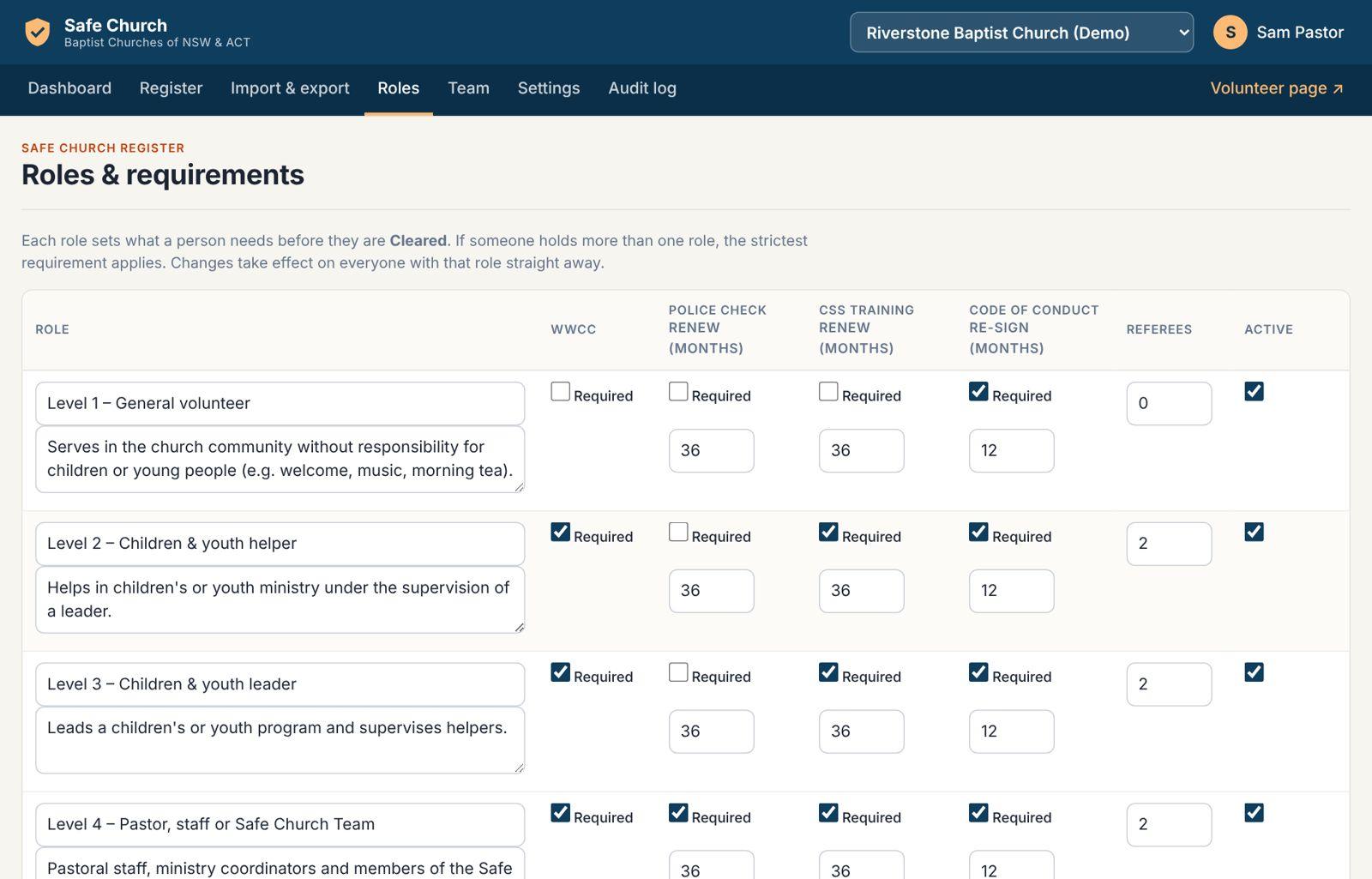
Open Roles. Your church starts with example Level 1–4 roles. Adjust what each role needs and how often it's renewed, and add any roles your church uses. Then check your ministry areas further down the page.
- Add your team
Open Team and add the people who will help: church admins for your Safe Church Team, and ministry leaders for each ministry they lead. They'll get an email to set their password.
- Choose your settings
Open Settings. Set how often volunteers are reminded and how often you get the admin digest, adapt the reference call guide, and paste in the code of conduct your church has adopted. In the same place you can choose whether referees may be emailed, add other credentials such as a first aid certificate, and turn on the under-18 WWCC rule.
- Import your current register
Open Import & export and bring in your spreadsheet. See Importing your spreadsheet below.
- Share your volunteer link
Copy the link from your Dashboard and put it in the bulletin, on a slide or behind a QR code. Volunteers who were imported can be sent a sign-in link from their record.
3Your weekly rhythm
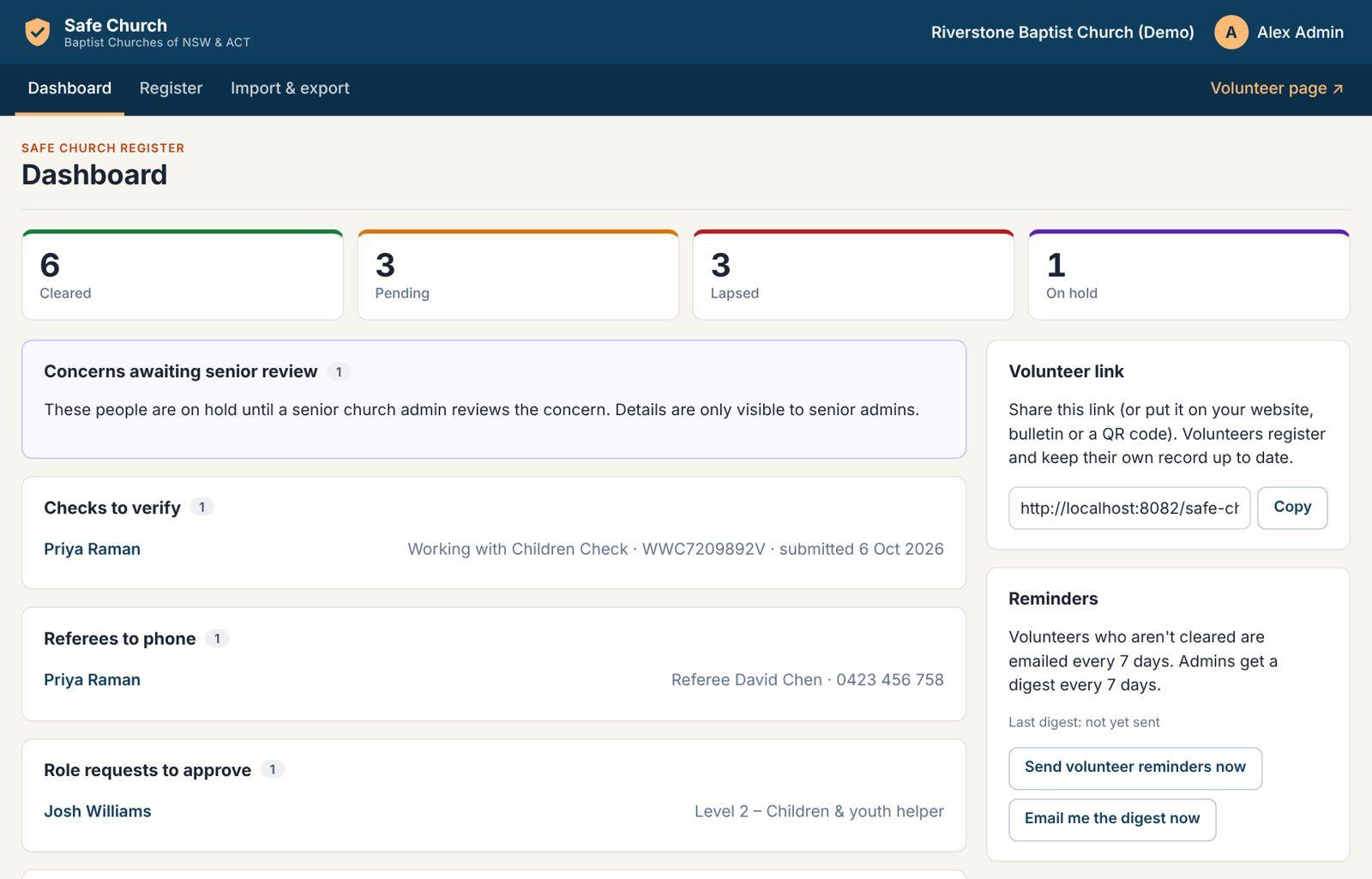
Open the Dashboard once a week – or wait for the digest email – and work down the lists:
- Concerns awaiting senior review – reference concerns and screening questionnaires with a "yes" answer, for senior admins. Others see a count only.
- Checks to verify – new WWCCs, training certificates and police checks volunteers have sent.
- References to complete – referees to phone (with their name and number), and written references that have come back by email for you to review.
- Role requests to approve – volunteers who asked to serve in a role.
- Lapsed – follow up – people whose checks have expired. Don't roster them until they've renewed.
- Coming up for renewal – grouped by 30, 60 and 90 days.
4Using the register
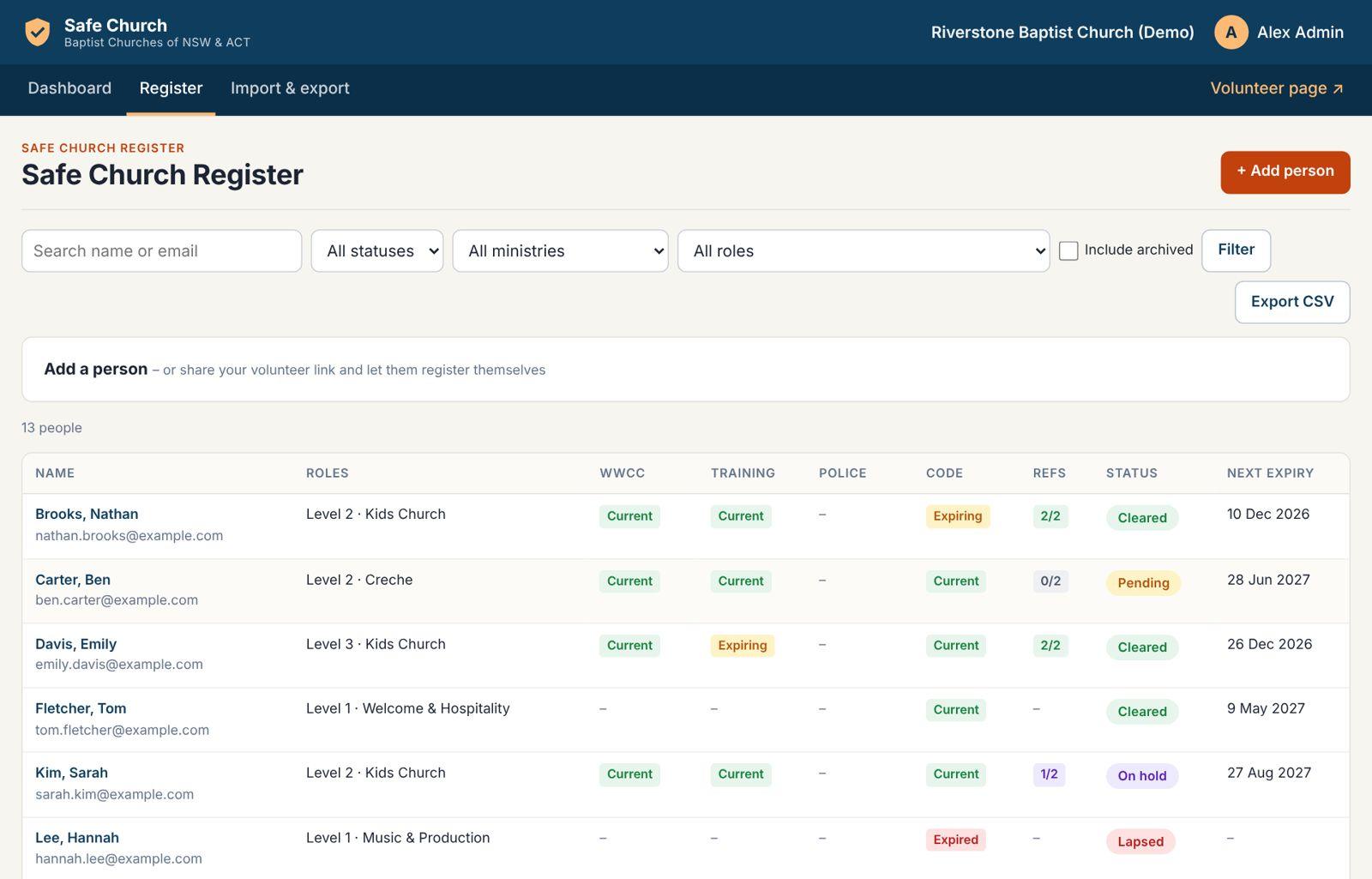
The Register shows everyone currently serving, with a column for each requirement and their overall status. Search by name or email, or filter by status, ministry or role. Hover over a column to see the detail.
Open someone's name to see their full record: checks and training, references, roles and history, notes, documents and recent activity.
To add someone yourself, use + Add person. Tick "Email them a link" and they can finish the rest from their phone.
5Verifying a Working with Children Check
- Open the person's record
From Checks to verify on the dashboard, or from the register.
- Look the check up on the state register
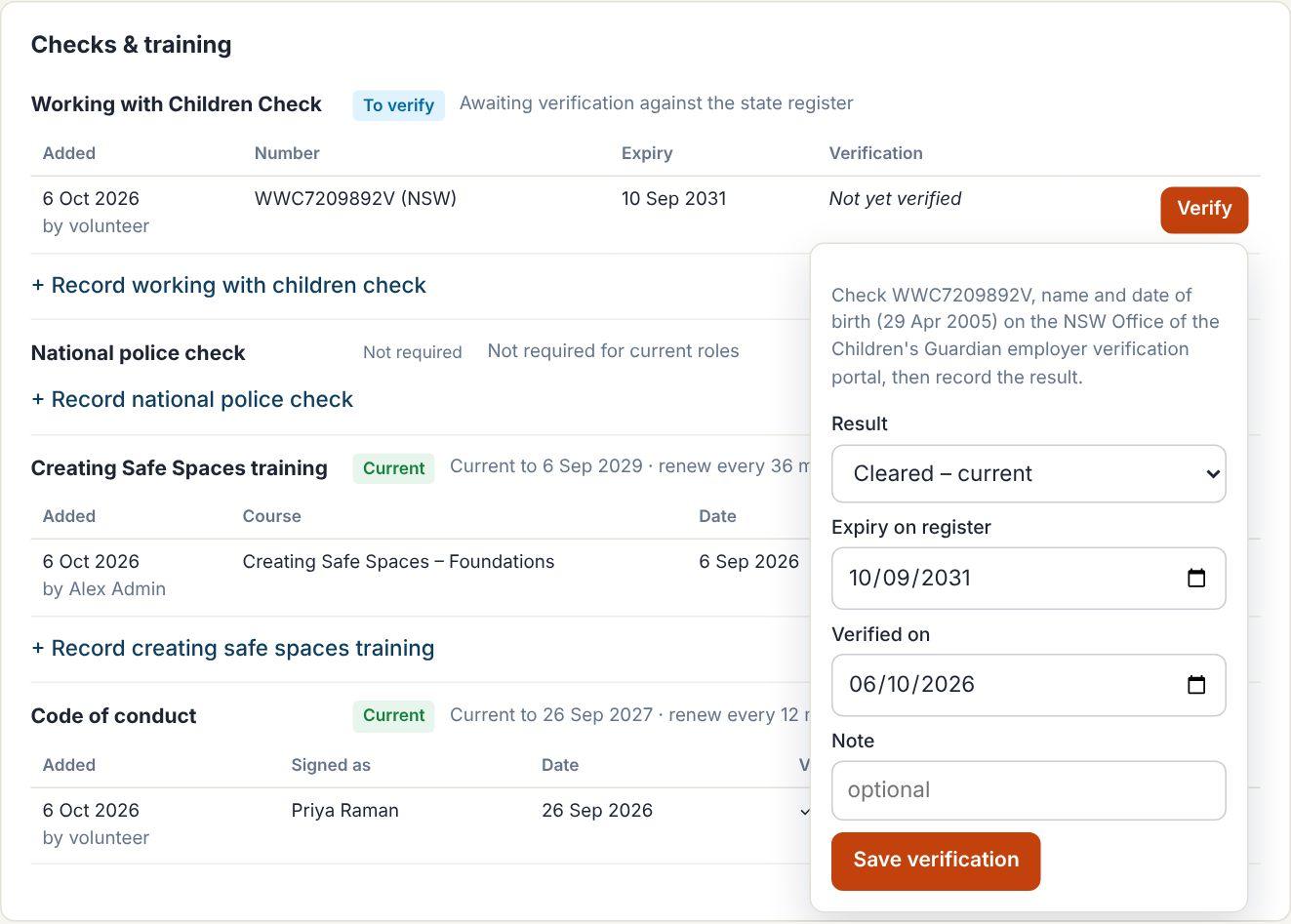
In NSW, use the Office of the Children's Guardian employer verification service with your church's employer account. In the ACT, verify the WWVP registration with Access Canberra. Check the number, name and date of birth all match.
- Record the result
Next to the check, choose Verify, select the result, confirm the expiry date shown on the register and the date you checked, and save.
The register records who verified it and when. Training, police and other certificates (such as first aid) work the same way: open the file, check it, and choose Sighted and accepted.
6Reference checks
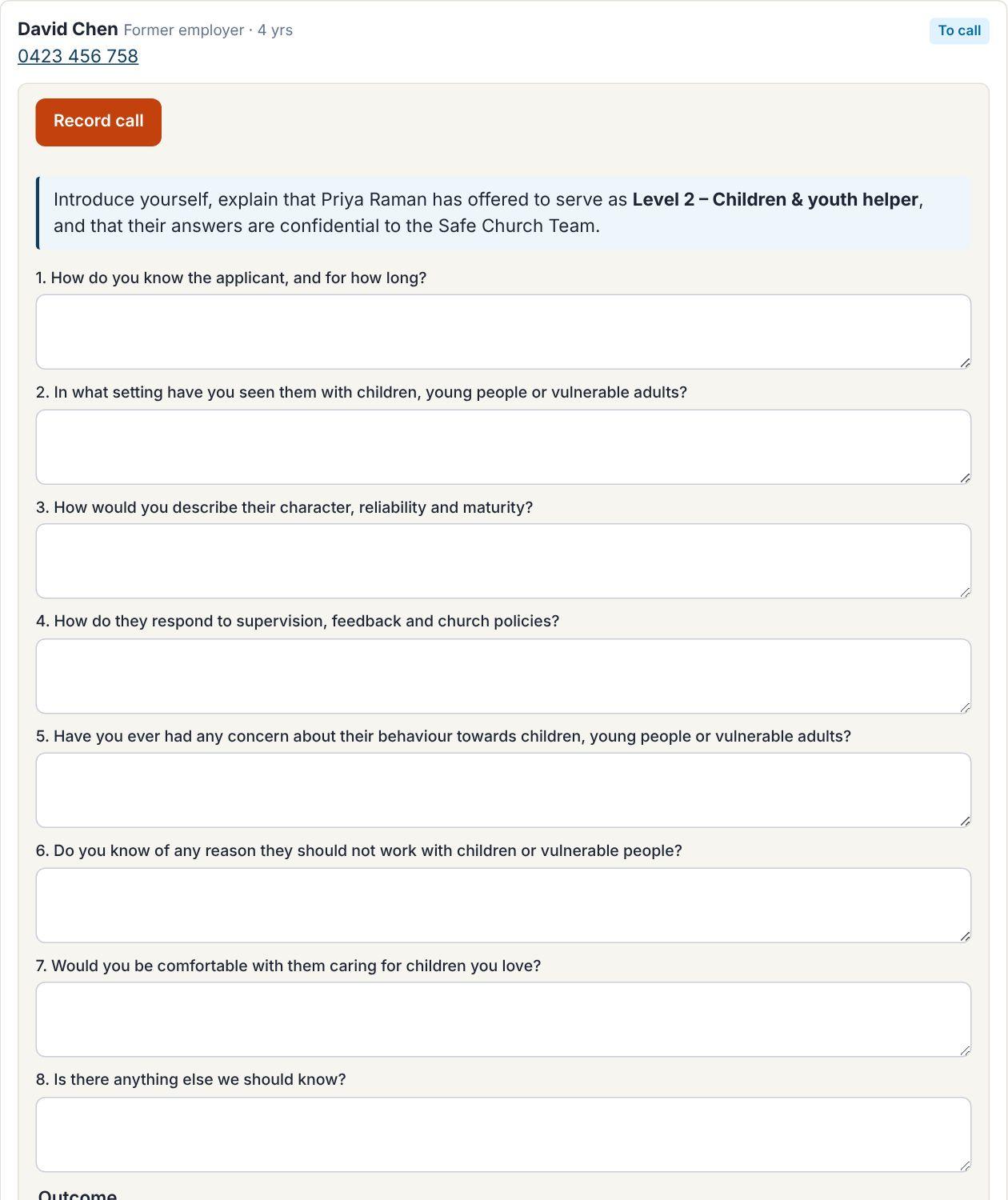
References are usually done by phone, so you can hear what's said and ask follow-up questions.
- Open the record and find the referee
Their number is a link – tap it on your phone to call.
- Choose Record call
Your church's call guide appears, starting with a short script to introduce the call.
- Note the answers as you go
Short notes are fine. Record what was said, not your interpretation.
- Choose the outcome
Satisfactory, Concern raised or Could not contact, then save.
Emailed references (optional)
If your senior admin has set Settings → References to allow email, you'll see Email questionnaire next to each referee. The referee gets a secure link that works once and expires after 21 days; they answer the same questions as your call guide.
- Written answers come back to References to complete for an admin to review. Choose Satisfactory, Phone to follow up or Concern raised.
- If the referee ticks that they have a concern, the person goes on hold straight away and your senior admins are emailed.
7Concerns and holds (senior admins)
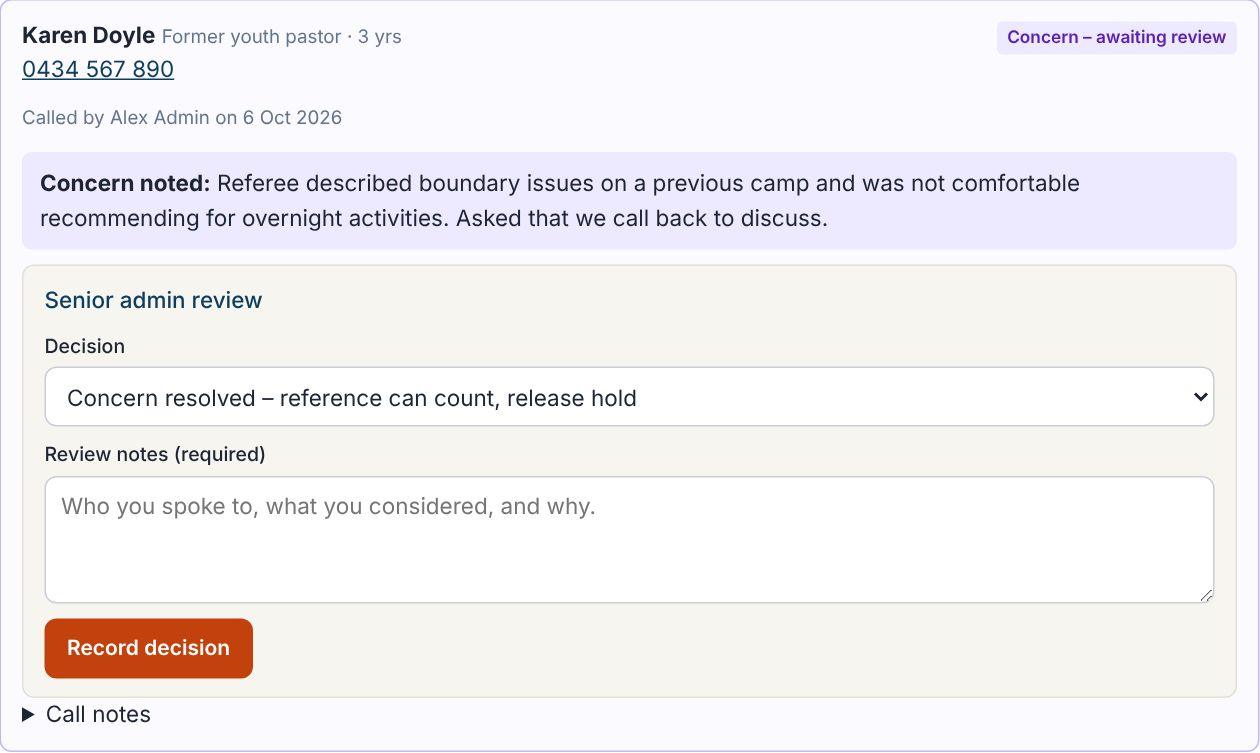
When a concern is raised – by a referee, by a WWCC result, or by a "yes" answer on the screening questionnaire – the person goes On hold and senior admins get an email (with no detail in it). Open the record to read the concern, the call notes or the questionnaire answers.
- Follow your Safe Church procedures
Speak with the referee and the volunteer as appropriate, and seek advice from the Safe Church Coordinator if you're unsure.
- Record your decision and reasons
Choose Concern resolved to let the reference count and release the hold, or Concern upheld to keep the person not cleared for that role. Notes are required.
Screening questionnaires: a "yes" answer doesn't automatically rule someone out. Have a confidential conversation, then open Screening questionnaire on their record and choose Reviewed – suitable to serve or Not suitable, with your reasons. Only senior admins can see the screening answers and any health information. If a potentially criminal matter is disclosed, consider your reporting obligations.
Senior admins can also place or release a manual hold, and add restricted notes for personal disclosures that only senior admins can read. Every view of restricted notes is logged.
8The screening questionnaire, interviews and induction
New volunteers complete the Volunteer Application & Screening Questionnaire as part of registering – there's no paper form to chase or file. People you add or import yourself see it on their checklist, and everyone is asked again when it's due for renewal (every three years by default, set under Roles).
- All church admins see why the person wants to serve, previous volunteering, churches attended, driving details, parent or guardian details (under 18) and the signed declaration.
- Senior admins only see the screening answers and any health and wellbeing information. Health information is for support only – it never places anyone on hold.
- Agreeing to the declaration also signs the Code of Conduct, and the two referees go straight into References to complete.
The process record
Each person's record has a Process record – church use only card with the same steps as the paper form: training, WWCC supplied and verified, entered on the register, interview, referee checks and induction. Most fill in by themselves as your team works.
- Record the interview
For child-related and leadership roles, choose Record interview. The companion interview guide's eight questions are there to note answers against, plus your overall impression.
- Record the induction
Choose Record induction, with who led it, the date and what was covered.
9Roles, approvals and people leaving
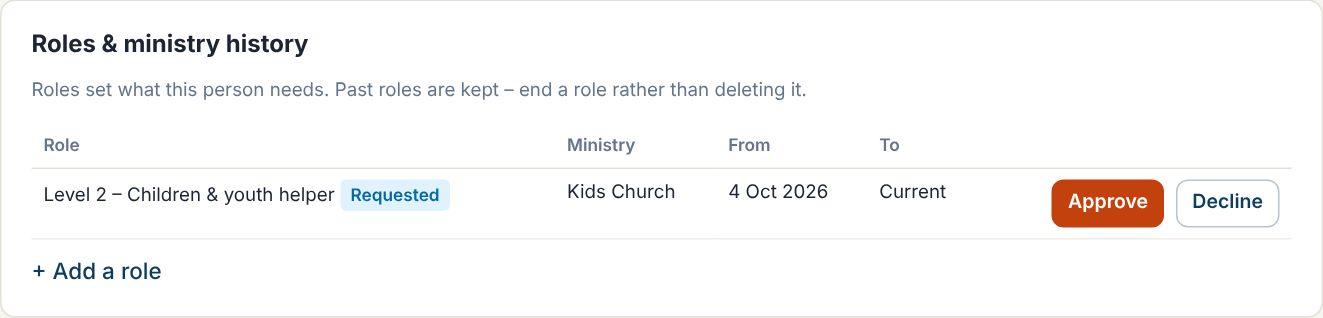
- Approve role requests from the dashboard or the person's record. Requested roles already count towards what they need.
- End a role when someone stops serving in it. Past roles stay in their history.
- Archive someone who leaves the church (senior admins). Their roles end, reminders stop, and the record is kept.
10Importing your spreadsheet
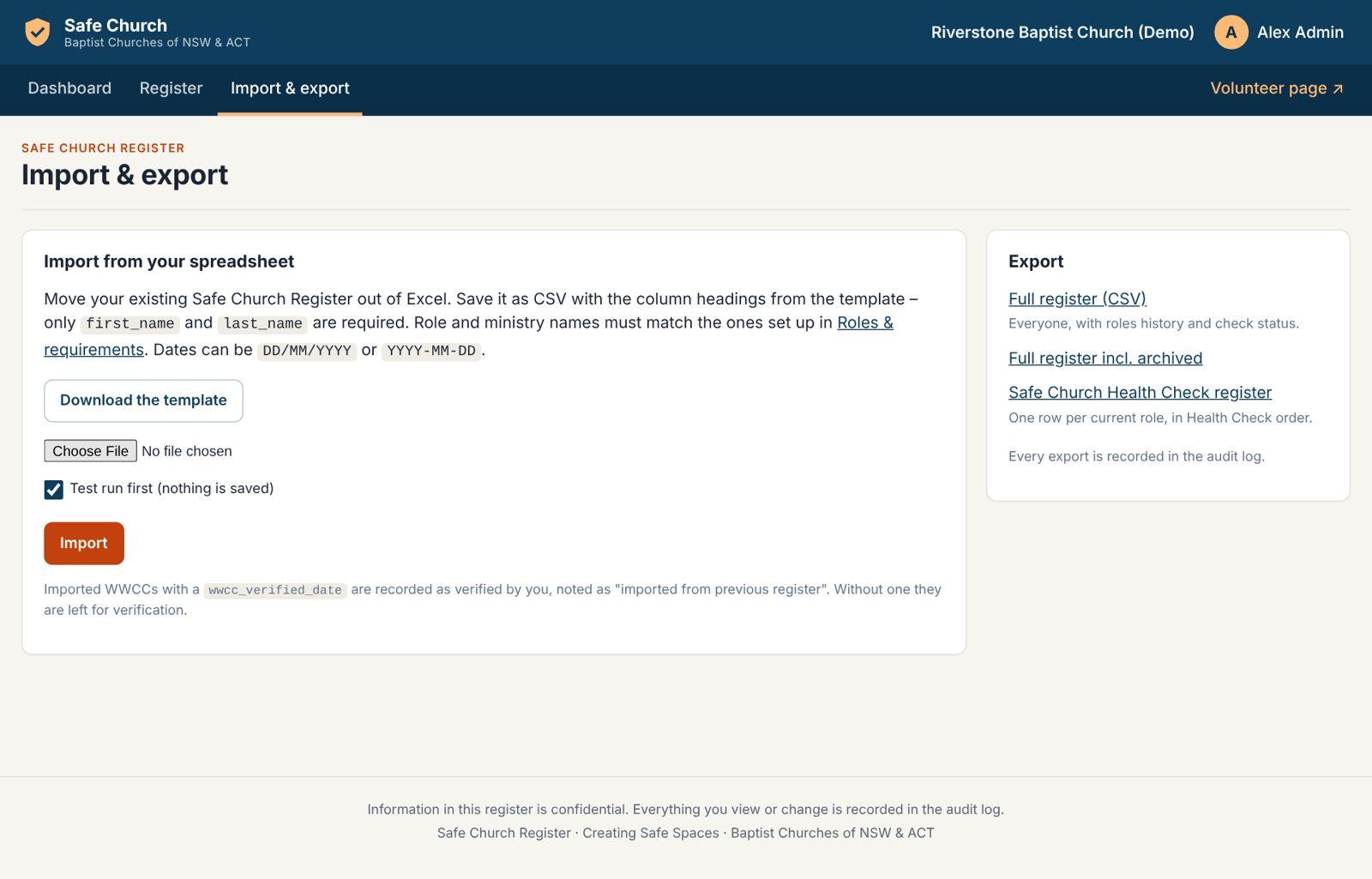
- Download the template
On Import & export, choose Download the template. It shows the column headings the import understands.
- Copy your data into it
Only first and last names are required. Role and ministry names must match the ones set up under Roles (for example "Level 2"). Dates can be DD/MM/YYYY.
- Save as CSV and do a test run
Leave Test run first ticked. You'll see how many people will be added and any rows that need fixing – nothing is saved.
- Import for real
Untick Test run and import. People with a WWCC verified date are recorded as verified by you, "imported from previous register".
11Reports
Open Reports for ready-made lists, each on screen and as a spreadsheet download:
- Expiring soon – anything due in the next 30, 60 or 90 days.
- Waiting to verify and References outstanding – your to-do lists, in one place.
- Missing items and Lapsed – who needs following up, and why.
- Under 18 – young helpers and when they turn 18 (when they'll need a WWCC).
- Cleared by ministry – a roster-ready list for each ministry.
- Archived – people who have moved on, with their history kept.
Every download is recorded in the audit log.
12Health Check and exports
Under Import & export you can download:
- Safe Church Health Check register – one row per current role, ready for your Health Check.
- Full register – everyone, with role history and the status of every check (optionally including archived people).
Every export is recorded in the audit log. Keep exported files somewhere secure and delete them when you're done.
13The audit log (senior admins)
Every time someone views a record, changes something, approves something or exports the register, it's recorded with who did it and when. Open Audit log to filter by person, action or date, and export it if you ever need to.
The log can't be edited. Check integrity confirms nothing has been changed behind the scenes.
14Good practice
- Use your own login. Never share passwords.
- Turn on two-factor sign-in (your name → Password & two-factor).
- Give people the least access they need. Most ministry leaders only need Ministry leader.
- Talk about volunteers' records only with those who need to know.
- Remove team members' access when they step down.